
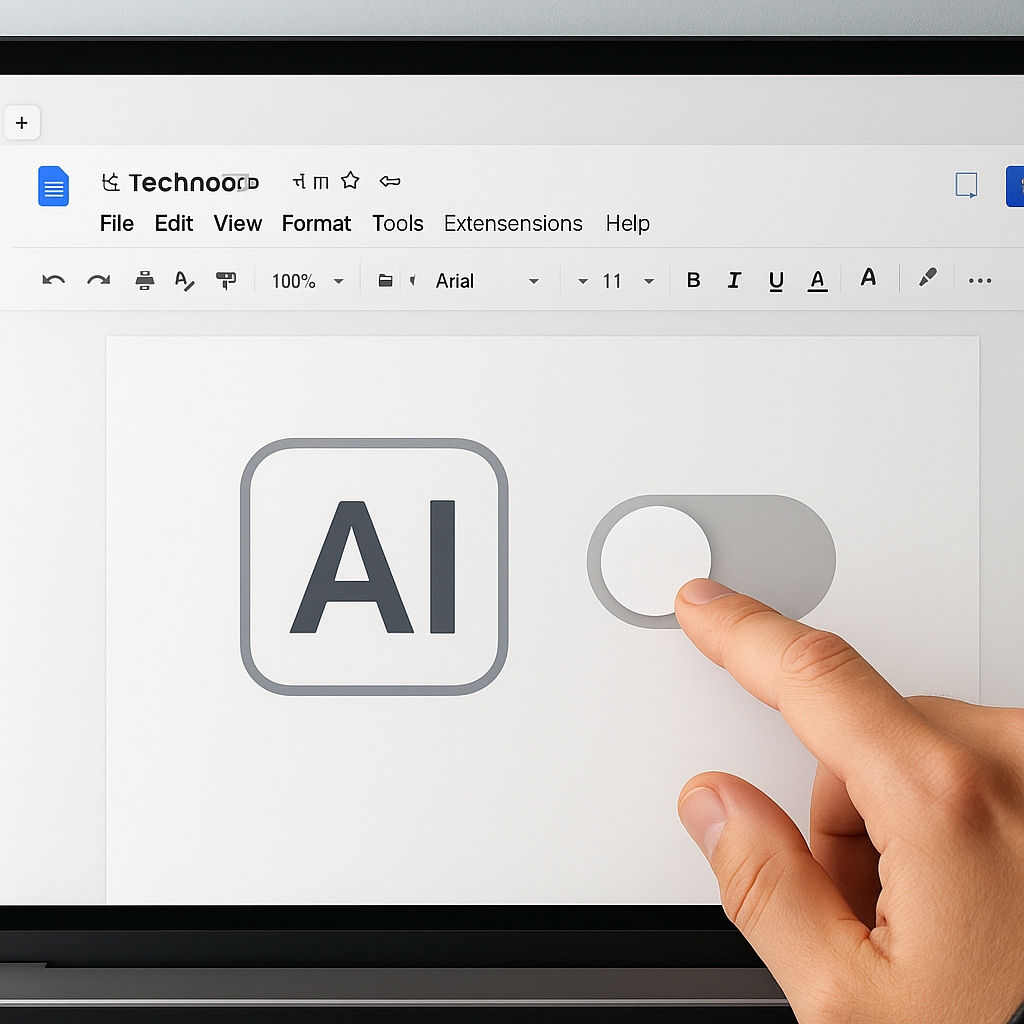
How to Turn Off AI in Google Docs: A Developer’s Guide
Turning off AI features in Google Docs is a straightforward process that can enhance your writing experience and minimize distractions. With the recent introduction of AI tools like Gemini, many users have found these features intrusive. In this article, you will learn how to effectively disable AI prompts in Google Docs and regain your focus while writing.
What Is Turning Off AI in Google Docs?
Turning off AI in Google Docs refers to the process of disabling AI-enhanced features that may disrupt your writing flow, such as pop-ups and suggestions. This functionality has gained significance as AI tools like Gemini have been integrated into Google Docs, often leading to user frustration. Now, users can regain control over their writing environment by following simple steps to deactivate these features.
Why This Matters Now
The integration of AI tools in platforms like Google Docs is rapidly changing how individuals approach writing and collaboration. With the launch of Gemini, users have reported increased interruptions due to unsolicited prompts, impacting productivity. Developers and content creators should care about this now as the shift towards AI-driven tools becomes more prevalent, affecting how documents are created and shared.
As noted in a recent TechCrunch article, many users are seeking ways to minimize these distractions. The ability to manage AI features effectively not only enhances individual productivity but also shapes the overall user experience in collaborative environments.
Technical Deep Dive
To disable AI features in Google Docs, you can follow these steps:
- Open your Google Docs document.
- Click on “Gemini” in the top menu bar.
- Select “Bottom Bar Preferences” from the dropdown menu.
- Toggle off the option to disable the AI box at the bottom of your screen.
This straightforward method removes the Gemini pop-up that many users find distracting.
For a more comprehensive approach, you can also disable smart features across your Google Workspace:
- Navigate to your Gmail inbox.
- Click on the gear icon for Settings.
- Select “See all settings.”
- Scroll to “Google Workspace smart features.”
- Click on “Manage Workspace smart feature settings.”
- Toggle off the option for smart features in Google Workspace.
These steps allow users to control their experience more effectively, ensuring a more focused writing session without unnecessary interruptions.
Real-World Applications
1. Academic Writing
Academics often require a distraction-free environment to focus on research and writing. By turning off AI features, they can concentrate on their work without interruptions, improving their productivity.
2. Content Creation
Content creators who rely on Google Docs for drafting articles or scripts can benefit significantly from disabling AI tools. This allows them to streamline their creative process without unsolicited suggestions.
3. Collaborative Projects
In collaborative scenarios, multiple team members may be using Google Docs simultaneously. Managing AI features can help maintain focus and flow during discussions, enhancing team dynamics.
4. Business Documentation
Businesses often use Google Docs for creating reports and proposals. Disabling AI prompts can help ensure that critical information is accurately presented without distractions that could lead to errors.
What This Means for Developers
As developers, understanding how to manage AI features in productivity tools is essential. Familiarizing yourself with these settings can enhance your workflow and help you create more effective documentation.
Moreover, as AI continues to evolve, developers should consider how they can design user-friendly interfaces that allow users to control AI interactions. This knowledge can be vital when building applications that integrate AI functionalities.
💡 Pro Insight: As AI tools become more integrated into our daily workflows, user control will be paramount. Developers should design systems that prioritize user experience, allowing seamless transitions between AI assistance and manual control.
Future of AI in Google Docs (2025–2030)
In the coming years, we can expect AI functionalities in Google Docs to become more sophisticated, offering personalized writing assistance while minimizing distractions. One possibility is the development of adaptive AI that learns user preferences over time, providing insights without overwhelming them with prompts.
As AI technology advances, collaborative tools may also include features that allow users to customize their AI experience further, ensuring a balance between assistance and autonomy. This evolution will shape how users interact with documents and enhance overall productivity in various fields.
Challenges & Limitations
User Overwhelm
One of the primary challenges is the potential for users to feel overwhelmed by AI features. The constant presence of prompts may lead to frustration and hinder focus, which can be detrimental to productivity.
Dependence on AI
Another limitation is the risk of users becoming overly dependent on AI tools, which might affect their writing skills and critical thinking. Balancing AI assistance with personal input is crucial to maintaining writing proficiency.
Integration Issues
As AI features evolve, integration with existing workflows can present challenges. Ensuring compatibility and ease of use will be vital for users to adopt these new functionalities effectively.
Privacy Concerns
With AI tools analyzing user data to provide personalized experiences, privacy concerns may arise. Developers must address these issues to ensure that user trust is maintained while utilizing AI technology.
Key Takeaways
- Turning off AI features in Google Docs can enhance your writing experience.
- Disabling AI prompts involves simple steps through Google Docs and Gmail settings.
- Managing AI tools is essential for maintaining focus in collaborative and individual writing tasks.
- Understanding user control over AI features is critical for developers in creating intuitive applications.
- Future developments may lead to more personalized and user-friendly AI interactions.
Frequently Asked Questions
How do I completely disable AI features in Google Docs?
You can disable AI features by adjusting settings in Google Docs and Gmail. Navigate to the “Gemini” option in Google Docs and adjust “Bottom Bar Preferences,” or manage smart features in Gmail settings.
Will disabling AI features affect my document formatting?
No, turning off AI features will not impact your document formatting. It only disables unsolicited prompts and features designed to assist your writing.
Can I turn AI features back on after disabling them?
Yes, you can easily re-enable AI features by following the same steps and toggling the options back to their original settings.
To stay updated on the latest AI tools and best practices for developers, follow KnowLatest for more insightful articles.


