
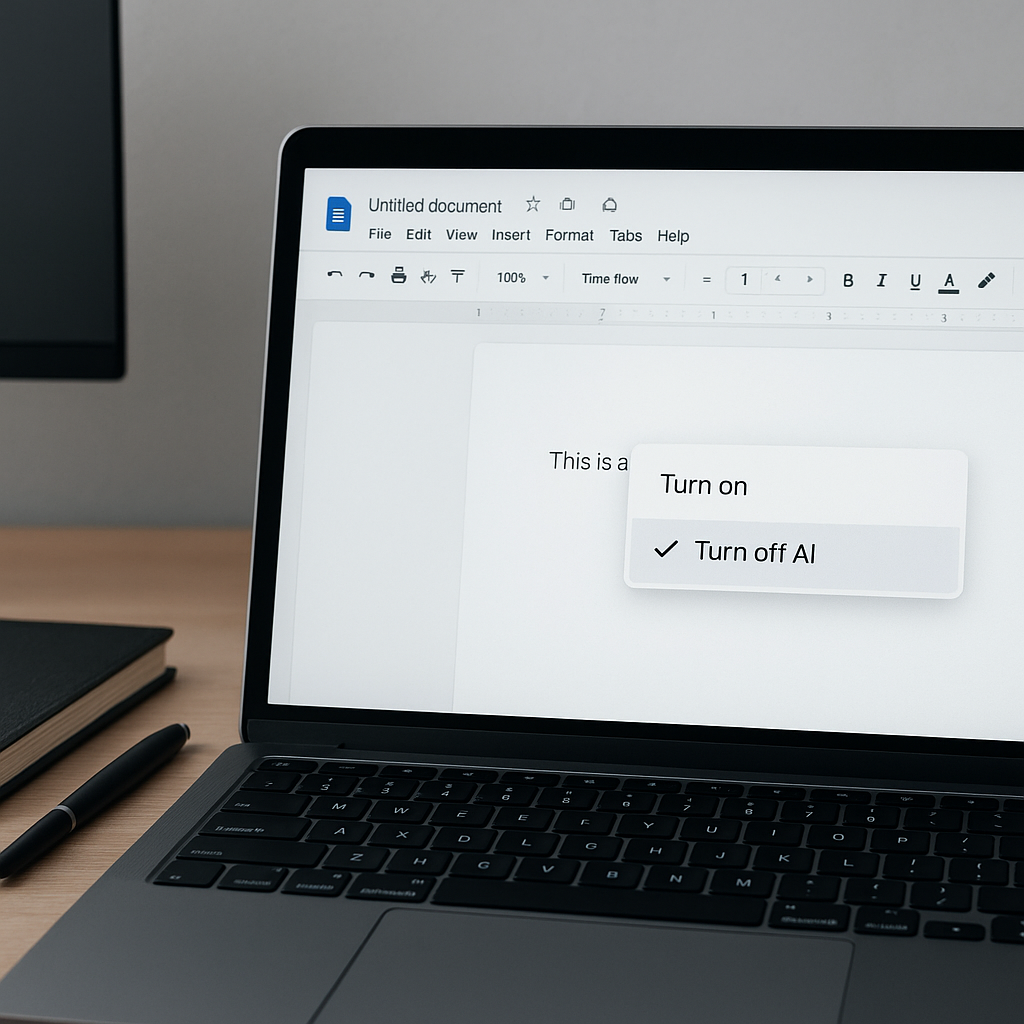
How to Turn Off AI in Google Docs: A Developer’s Guide
Disabling AI features in Google Docs can streamline your writing experience. Recently, users have reported intrusive pop-ups from the AI assistant, Gemini, disrupting their workflow. This guide will walk you through the steps to turn off AI in Google Docs, ensuring a more focused writing environment.
What Is AI in Google Docs?
AI in Google Docs refers to intelligent features and tools, such as the Gemini assistant, designed to enhance user productivity by offering suggestions, writing aids, and formatting help. These AI features can, however, sometimes disrupt the writing process with unsolicited pop-ups and prompts. Understanding how to disable these features is essential for developers and writers seeking an uninterrupted workflow.
Why This Matters Now
The integration of AI tools in everyday applications like Google Docs has grown significantly, changing how users interact with text editing software. Recent reports indicate a rise in user frustration due to unexpected AI prompts, particularly from Gemini, which can distract from the task at hand. Developers must understand how to manage these features to maintain focus and productivity.
As the demand for seamless writing experiences increases, finding effective ways to control AI functionalities becomes crucial. This is particularly relevant for those in technical fields where concentration is paramount, making the ability to switch off disruptive AI elements a pressing concern.
Technical Deep Dive
Turning off AI features in Google Docs is relatively straightforward. Follow these steps:
- Open your Google Docs document.
- Click on the “Gemini” button in the top menu bar.
- Select “Bottom Bar Preferences” from the drop-down menu.
- Toggle off the option for the bottom bar, which houses the Gemini pop-up.
For a more comprehensive approach to disabling AI features across Google Workspace, follow these additional steps:
- Navigate to your Gmail inbox.
- Click the gear icon for Settings.
- Select “See all settings”.
- Scroll to “Google Workspace smart features” and click “Manage Workspace smart feature settings”.
- Toggle off the smart features as needed.
These settings allow for a tailored experience, minimizing distractions during writing sessions. Disabling AI features enhances your control over the writing process, allowing you to focus on content creation without interruptions.
Real-World Applications
1. Academic Writing
Academics often rely on Google Docs for collaboration. Disabling AI features can reduce distractions during research and writing phases, allowing for deeper focus.
2. Software Development Documentation
Developers creating technical documentation can benefit from a clutter-free interface. By turning off AI suggestions, they can ensure that the focus remains on technical accuracy and clarity.
3. Content Creation for Marketing
Marketers and content creators can streamline their writing processes by disabling AI features. This allows for a more personalized content creation approach without unwanted prompts.
What This Means for Developers
For developers and technical writers, understanding how to manage AI features in tools like Google Docs is essential. This knowledge can lead to enhanced productivity and a more efficient writing process. Skills in configuring software settings will become increasingly important as AI tools continue to evolve.
By learning to disable AI features, developers can maintain control over their writing environments, ensuring that they can focus on delivering high-quality content without distractions.
💡 Pro Insight: As AI tools like Gemini evolve, developers must anticipate the need for customization. Understanding how to manage these features will be crucial for maintaining productivity in increasingly AI-driven environments.
Future of AI in Google Docs (2025–2030)
Looking ahead, AI integration in tools like Google Docs is expected to become more sophisticated, offering enhanced customization options. By 2025, we may see a shift towards user-controlled AI environments, where individuals can tailor AI assistance based on their specific needs and preferences.
Predictions suggest that as technology advances, AI could evolve from merely providing suggestions to more interactive, context-aware assistance, making it essential for users to maintain control over these features. This shift will likely involve more intuitive settings for managing AI tools, allowing for a more personalized and efficient writing experience.
Challenges & Limitations
1. User Frustration with AI Prompts
Many users report frustration with unexpected AI pop-ups disrupting their workflow, necessitating robust controls to manage these features effectively.
2. Over-Reliance on AI Tools
There is a risk of becoming overly reliant on AI suggestions, which may hinder critical thinking and creativity in writing.
3. Complexity of Settings
Some users find the settings to disable AI features convoluted, which could deter them from utilizing the tools effectively.
4. Evolving Technology
As AI technology continues to advance, keeping up with changes in settings and features will require ongoing education and adaptation from users.
Key Takeaways
- AI features in Google Docs can be easily disabled to enhance writing focus.
- Managing AI tools is crucial for maintaining productivity, especially in technical fields.
- Developers should be proactive in customizing their writing environments to minimize distractions.
- The future of AI in writing tools will likely involve more user control and customization options.
- Understanding AI settings can empower users to optimize their writing processes, leading to better outcomes.
Frequently Asked Questions
How do I completely disable AI in Google Docs?
To completely disable AI, you need to access the settings in your Gmail and toggle off the smart features under “Manage Workspace smart feature settings.”
Can I turn off AI suggestions without affecting other features?
Yes, you can selectively disable AI features in Google Docs without affecting other functionalities by adjusting the settings in the Gemini menu and your Gmail settings.
What should I do if AI features keep reactivating?
If AI features continue to reactivate, revisit your settings in Gmail and ensure that you have saved your changes. You may need to refresh your session or clear your cache.
For more insights on managing AI features effectively, follow KnowLatest for updates and expert tips.


